Motoseyir motorcycle navigation: every feature
This page grows. When a new feature arrives it goes here first, under the heading it belongs to. There are five groups below: city and courier riding, touring, on the road and after the ride, riding together, and in the mountains and in the car.
For city and courier riding
Shortest route
A standard sat nav gives you the fastest road for a car. On a bike what wears you out is not minutes but kilometres. Motoseyir compares several alternatives between the same two points and suggests the shortest one, even if it takes a little longer. Turn-by-turn navigation gives you a close-following map, turn instructions, remaining distance and arrival time.
Best order for your stops
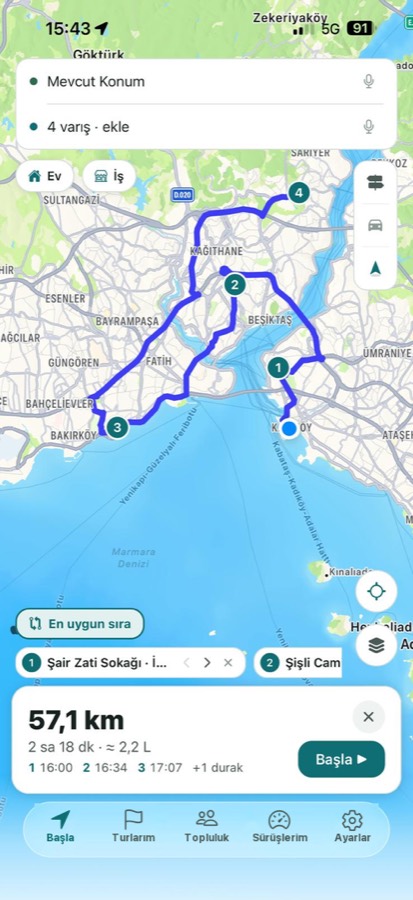
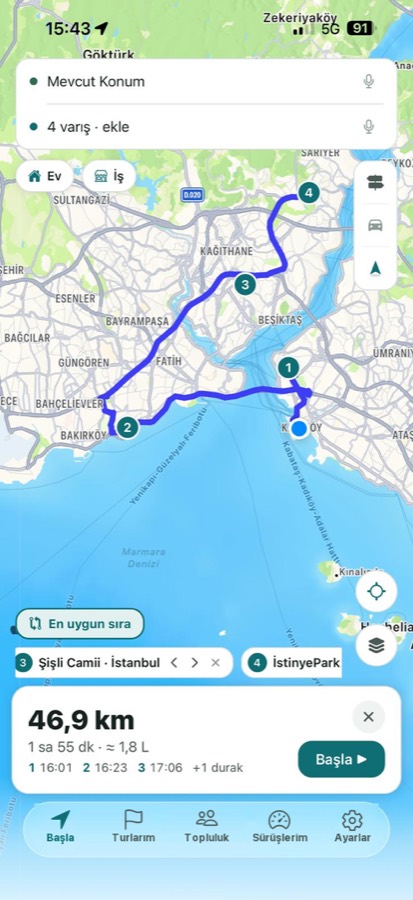
You mark several delivery points in any order and “Best order” rearranges them all for the shortest total distance. The time you will reach each stop is written above the route as well. The two screens below are from a real ride: the same four stops in Istanbul, 57.1 km in the rider’s own order, 46.9 km in the order Motoseyir found. The difference is more than ten kilometres.
Fuel estimate
You see the estimated amount of fuel for the route on its card before you set off: litres in most places, gallons in the US. Tap the consumption on the card to enter your own; add the fuel price under Settings → Riding and the savings report works out your fuel savings.
For touring and weekend rides
Back roads and Coast mode
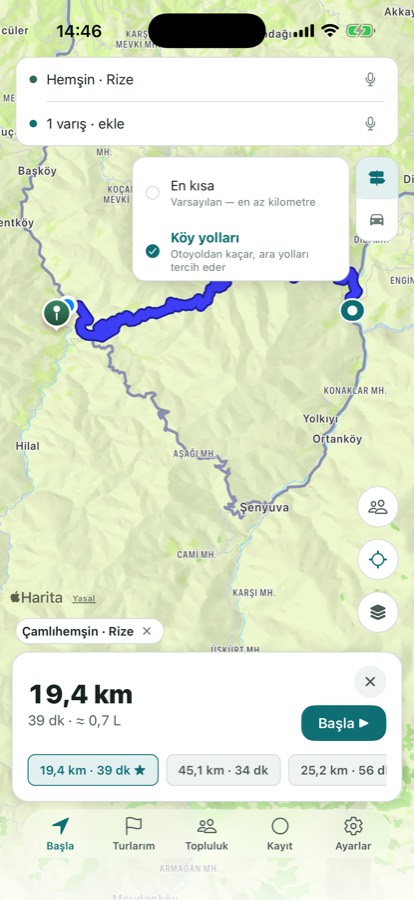
Back roads avoids the motorway and uses the valley links and surfaced lanes a standard map skips. In Türkiye and Greece the route is calculated on Motoseyir’s own server; Ayder to Hemşin comes out at 24.1 km that way, while general maps show 49.9 km for the same two points. Coast mode holds the route along the shoreline; it works in Türkiye and in most of Europe’s coastal countries, and where there is no coastline to follow the route is calculated like Back roads. On the Route screen you switch between Shortest and Back roads for free; on the tour screen the mode button at the top left switches between Standard, Back roads and Coast (the last two are Pro).
Legendary routes, ready to ride
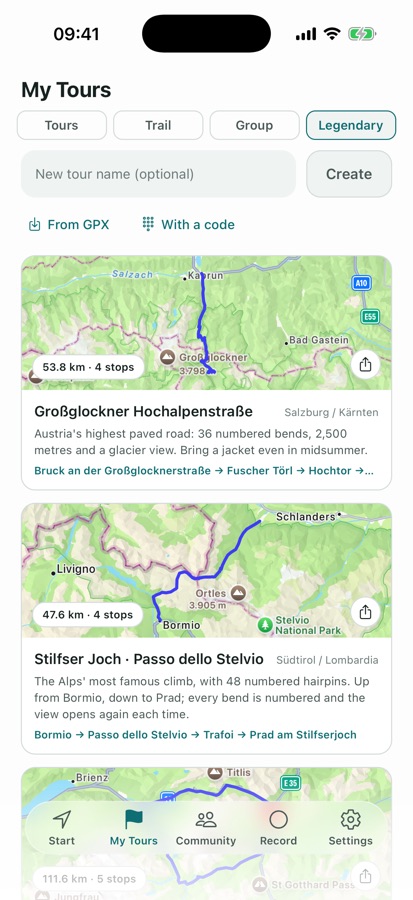
From Turkey: Şile–Ağva, the Lycian D400, Assos–Kaz Mountains, Nemrut, Sapanca–Maşukiye–Kartepe (11 tours in all). From Europe: Großglockner Hochalpenstraße, Stelvio Pass, Furka–Grimsel–Susten, Sellaronda, Timmelsjoch, Col du Galibier (17 roads in all). From the US: Tail of the Dragon, Cherohala Skyway, Blue Ridge Parkway, Beartooth Highway, Big Sur, Million Dollar Highway (26 roads in all). The Turkish ones are copied into your tours with their stops and route as soon as you open them; for European and US roads a page about the road opens first, and Ride this road builds the route.
Discover
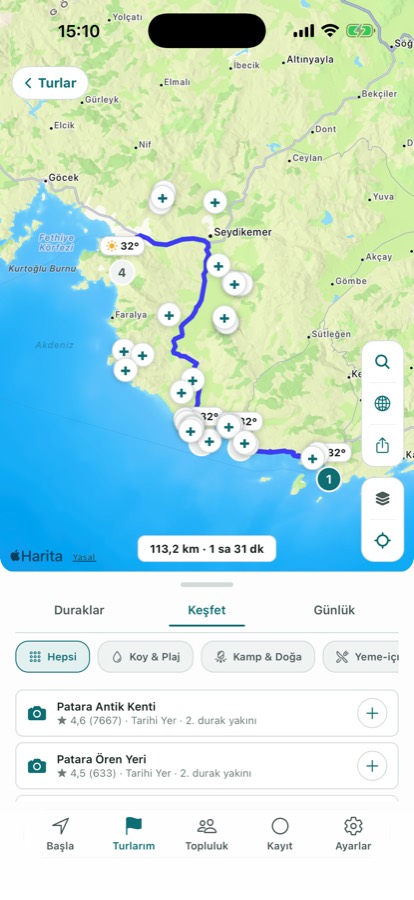
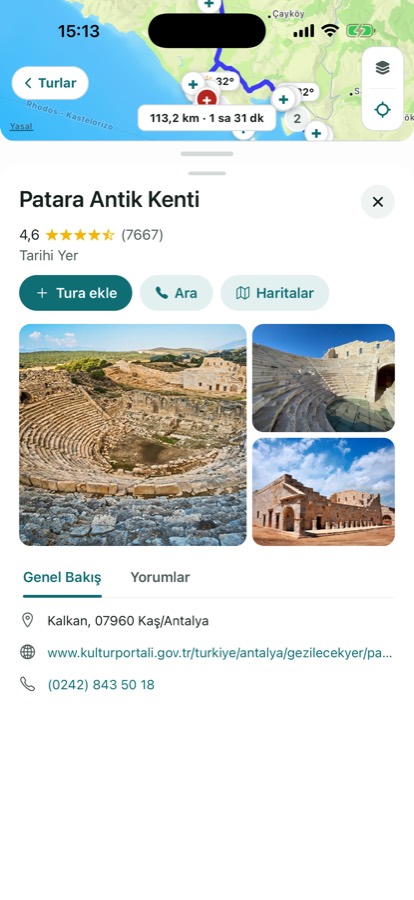
In My Tours, the Discover tab of a tour lists the coves and beaches, campsites, places to eat, fuel stops and passes around it. Each row shows the rating and which stop it is near, and you add the one you like as a stop. Tap a place and its location, rating and a short description appear on one screen. The tab is open to everyone; the search is part of Pro.
Tour journal
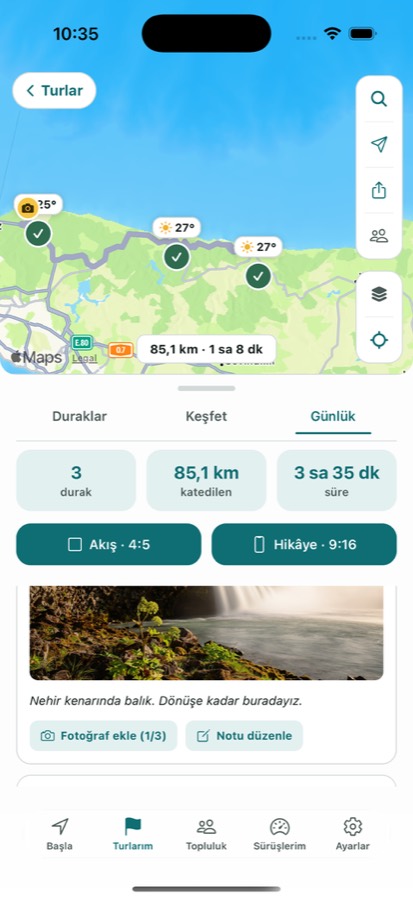
You build the tour out of stops; when you reach one, that stop is written into the journal by itself and you add a photo and a short note. A stop can hold up to three photos, and the photos show up as cards on the tour map. They are kept even if you start the tour over. The journal stays on your device; if you choose to share it in Community at most three photos go with it, and you pick which ones.
Trails and GPX
Import a GPX file and the track lands on the Trail tab; a tour from a friend’s code lands on the Tours tab. While the Trail tab is empty it explains what it is for and offers a ready-made example trail for your region. You can also turn one of your own ride recordings into a trail and export it as GPX.
On the road and after the ride
Rain warning along the route
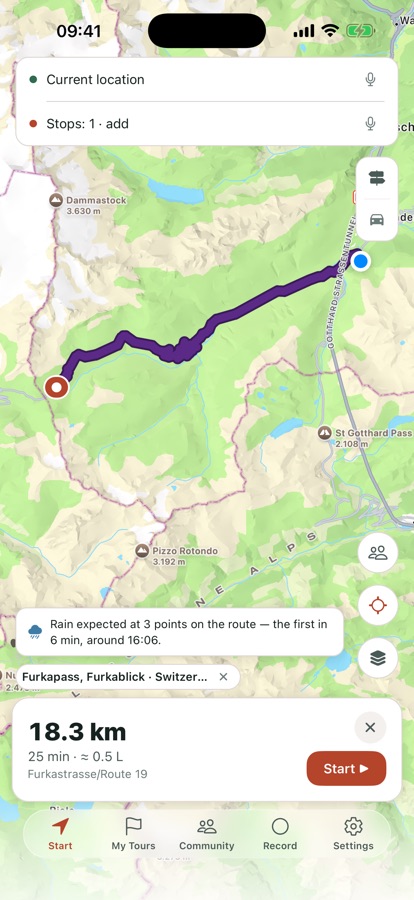
If rain is expected on your route it warns you in advance, for the time you will actually get there. The Route screen checks four points along the route and shows one warning; in My Tours every stop also gets its own forecast. If there is no rain on the route, no warning appears.
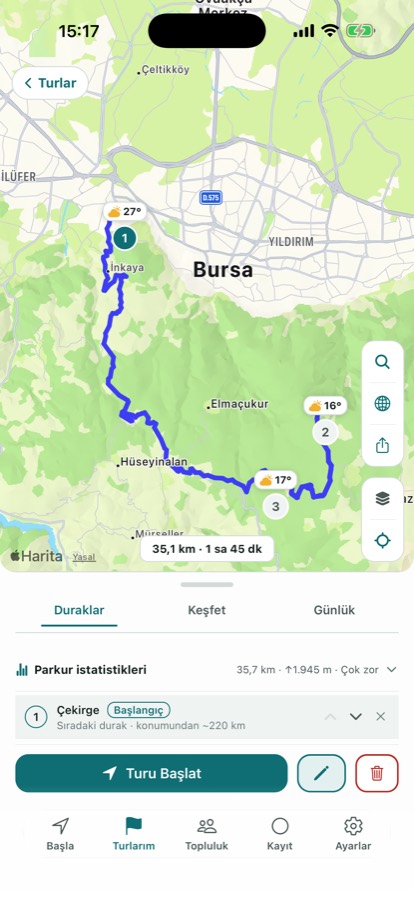
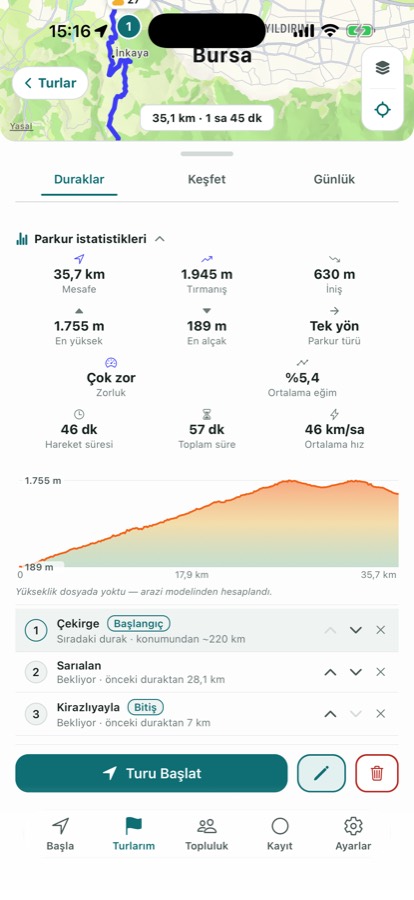
Ride recording and trail statistics
Ride recording keeps running with the screen off and the track is coloured by speed; break time is counted separately and long breaks close a segment by themselves. You start the recording out on the road with the button in navigation and end it with the same button. A finished ride can be sent to your group, turned into a trail, or exported as GPX. For a trail it works out the distance, total climb and steepest gradient, and as you slide your finger along the elevation profile the point on the map moves with it. If the file holds no elevation data, it is calculated from a terrain model.
Voice guidance
Turn instructions are spoken by your phone’s voice in the app’s language; with the app in Turkish they come from a recorded human voice-over, re-recorded in the latest update. Distances follow the region you are in: kilometres in most of Europe, miles and feet in the US (“In 500 feet, turn right”), miles and yards in the UK.
Turn the phone sideways
Hold the phone in landscape and cards and lists gather on the left while the map takes the rest. In navigation the manoeuvre strip and arrival card sit on the left and the map on the right; My Tours switches to two columns. On the wide mounts that sit above the tank, that layout simply works better.
Riding together
Group ride
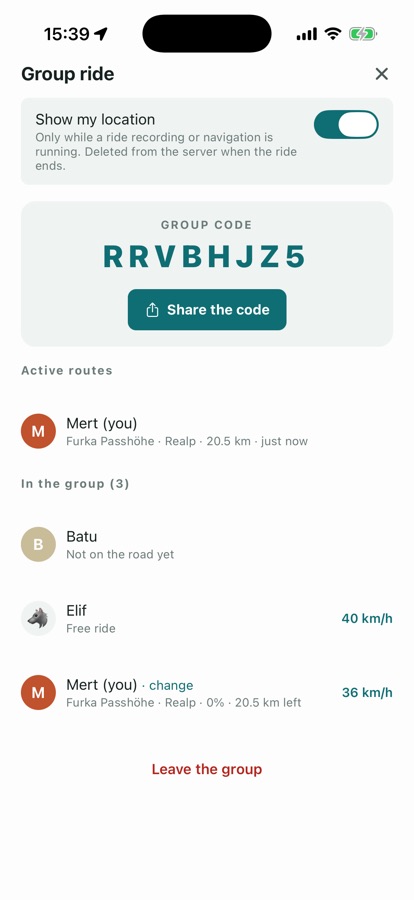
When one person creates a group a single code is generated (A3K9MZ7P, for example), everyone joins with that code, and you all see each other on the route. Location is shared only while a ride recording or navigation is running, and it is deleted from the server when the ride ends. Joining a group is free; creating one needs Pro. When a member opens a route with Start, the same route goes to the others, who open it on their own screen with one tap.
The group panel was simplified in the latest update: code on top, people first, settings below. The group button shows when sharing is on, and a stop added to the route is marked on the map.
Invite to ride
In My Ride Group, “Invite to ride” next to a person sends your route and a voice link in one tap. Whoever gets it picks “Ride the same route” and opens the same route on their own phone, or “Riding behind you” and joins the audio only. No codes to type, no screens to share.
Intercom over the internet
While a group route is being ridden the intercom asks once; accept and the audio goes only to your group. You can also start it by hand with no route at all. Tapping the intercom pill in navigation mutes your own microphone; the speaker button in the member list mutes one rider in your ear only, while the rest of the group still hears them. Pair your helmet or headset over Bluetooth and the audio comes through it. Audio is never recorded on our server, only passed to whoever is in the room at that moment; the room closes when navigation ends or when you close it yourself.
Ride recordings in the group, and the Community feed
Send a finished ride to your group and the track, distance and time stay there for 14 days; around 400 metres near the start and the end are never sent. You can take a recording you sent back whenever you like. The Community feed, on the other hand, is public to riders in your region: a tour you share appears with its name, stops, distance, time and your note, and others can like and comment on it. A new member’s first post is reviewed before it goes live and later ones are published straight away; you can filter the feed by country, and you can remove a post, a comment or your membership whenever you want.
In the mountains, on the road and in the car
1,600+ passes on one map
1,638 passes in 36 countries, each with its altitude and location and most with a photo; where the closing months are known they’re shown, and dirt roads are marked as dirt. In My Tours → Legendary → Mountain passes you filter by region and sort by popularity, distance from you or altitude, then choose Add to tour or Go here.
Pick a direction and a time, the tour is ready
Turn the dial to the direction you want (or choose Any direction) and pick a length of 30–300 km or a number of hours; the curviness levels are Relaxed, Twisty and Very twisty. You can leave out motorways, tolls and dirt roads separately. Each time you get three tours, and Another one brings new ones, up to nine options. Anyone can generate a tour and see it on the map; building a twisty or motorway-free one is part of Pro.
The next turn on the Lock Screen
The next turn shows on the Lock Screen and in the Dynamic Island, so you don’t have to open the phone. You can turn it off under Settings → Riding → Next turn on the Lock Screen; it’s on by default. iPhone only.
Speed cameras, speed limit and lanes
It warns you on screen 500 m or 20 seconds before each of the 726 speed cameras in Türkiye, and you can turn that off under Settings → Riding. Where the limit is known, a speed-limit sign stays on screen. Lane arrows appear as you approach junctions that have lane data on the map, and on the dashboard of compatible cars.
Your route on the car screen
Map, turns and distance remaining are on CarPlay. Skip a stop, record the ride, open the intercom or search an address from the Destinations list; while navigating you can search along the route for Fuel, Coffee, Food, Groceries, Pharmacy, Rest area and Motorcycle repair. The marker you picked and your group friends show on the map, and the map also sits in CarPlay Dashboard.
A riding partner in your helmet
Press the button and ask: it adds stops, finds places along the route, changes the route, and tells you the weather and your fuel range. Pro renews 10 minutes of talk time every 30 days, and there are minute packs that never expire. The details are on the AI CoRider page.
Analysis, 3D replay, video and badges
When a ride ends you see moving time, real breaks, sharp bends and climbing. Watch in 3D replays it in Apple’s helicopter view at 1, 5, 20 or 60 times speed, and you can save it as a vertical video of 15, 30 or 60 seconds. The trip map video shows a tour on a clean map. There are also 22 badges, GPX export and an Instagram Story card.
Six markers
On the map you are a Supersport, Chopper, Maxi scooter, Touring, Arrow or Helmet. You pick it under Settings → Map → Navigation marker, and CarPlay shows the same one. The first four are 3D with a rider on board and lean into bends.